# How to Extract Businesses from Google Maps

> Learn how to extract businesses from Google Maps: choosing categories and locations, filtering, exporting to CSV/Excel and verifying records.

Author: Eyüp Derdiyok
Published: 2026-10-11
Category: Scraper
Canonical: https://omnipuremarketing.com/en/blog/how-to-extract-businesses-from-google-maps/

You want to list the restaurants in a city, the stores in a particular area or the businesses that serve customers nationwide. When you search Google Maps, you find plenty of companies; but copying their names, phone numbers and websites one by one quickly turns into a time-consuming chore.

**Extracting businesses from Google Maps** is the process of pulling business listings together into a research list you can filter. That list can serve many purposes, such as market research, finding suppliers, competitor analysis or evaluating potential leads.

In this guide, we cover what information you can research, how the different methods compare and how to organize your results in a CSV or Excel file.

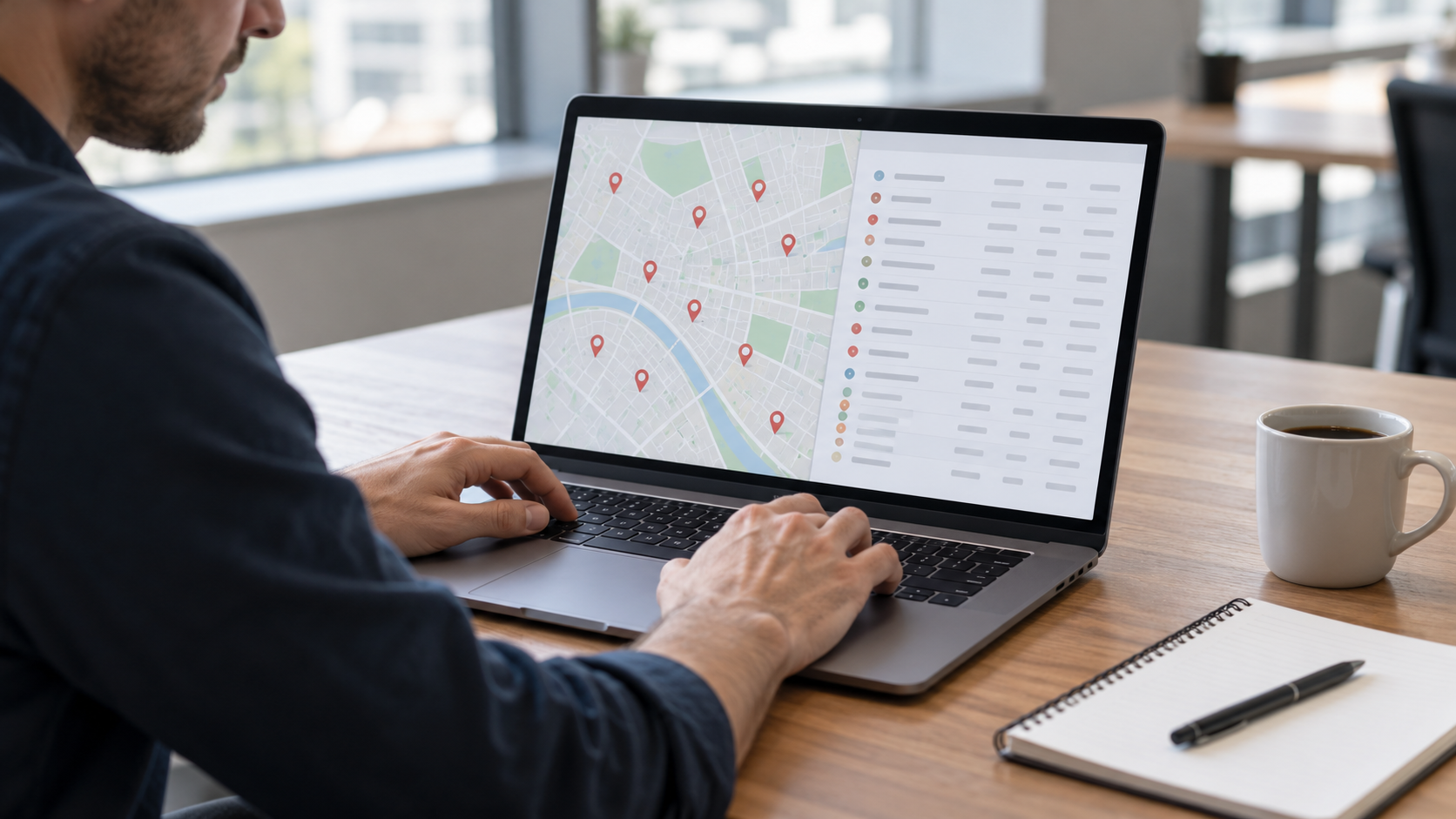
<figure><img src="/images/blog/google-maps-firma-arastirmasi-genel.png" alt="Person reviewing business records alongside map locations on a laptop" width="1672" height="941" loading="lazy" decoding="async"><figcaption>Turning businesses on a map into an organized company list. AI-generated illustrative image.</figcaption></figure>

## Why don't Google Maps results show every business?

Don't treat the list you see in a search result as a complete inventory of every business in that area. The search phrase you use, the location you select and the categories businesses are listed under all affect the scope of your research. Two companies doing the same work can appear under different categories on the map.

For example, a search for "restaurants in Istanbul" and one for "cafes in Kadıköy" reflect different needs. If you're researching businesses across an entire city, decide first which categories and areas you'll cover.

It's also important not to confuse the search interface with the API. Google's *Text Search (New)* documentation states that a single query returns at most 60 results across all pages, and that this limit may change. That doesn't mean the map interface always applies the same limit. [Source: Google Text Search documentation.](https://developers.google.com/maps/documentation/places/web-service/text-search)

In short, having a large number of records in a file doesn't prove that you've captured every business in your target area. Logging the categories and areas you've researched is just as important as tracking the number of results.

## What information should a business list include?

Collecting columns you don't need doesn't make a file more useful. Consider the fields below as a starting point; there's no guarantee that every field will be available or retrievable with the method you choose.

<div class="table-wrap"><table><thead><tr><th>Field</th><th>What it's for</th><th>Checkpoint</th></tr></thead><tbody>
<tr><td>Business name and category</td><td>Classifying businesses</td><td>Separating branches and similar names</td></tr>
<tr><td>City, district and full address</td><td>Running regional research</td><td>Not confusing the headquarters address with the service area</td></tr>
<tr><td>Business phone</td><td>Identifying the business's contact channel</td><td>Checking that it's current and matches the business</td></tr>
<tr><td>Website</td><td>Getting more information about the business</td><td>Verifying that the domain belongs to that business</td></tr>
<tr><td>Rating and review count</td><td>Adding context to your research</td><td>Not treating it as a quality measure on its own</td></tr>
<tr><td>Source and date checked</td><td>Tracing where information came from</td><td>Making it possible to update later</td></tr>
</tbody></table></div>

For email addresses and social media links, check the contact page on the company's official website separately. Don't mix this information with the fields that come from the map listing; record the source link and the date checked for each one. That way, you can always see later where a piece of information in your file came from.

If there's no email address, don't generate a guessed address from the company name. Clearly flagging missing fields is more valuable than using incorrect information as if it were accurate.

## 5 ways to extract businesses from Google Maps

You can compare the methods below based on the scale of your work and your technical capacity. This assessment is not a tool performance test.

### 1. No-code data platforms

With no-code tools, evaluate the options for choosing categories and areas, filtering and exporting files. When choosing a tool, test on a small sample whether it provides the fields your record template needs. An easy-to-use interface matters, but so does output you can edit and verify.

### 2. Browser extensions

These are worth considering when you want to cut down on repetitive copying. Before using an extension, check which pages it supports, what permissions it requests and which fields it extracts. Don't accept a list built from visible results as a complete inventory of an area.

### 3. Google Places API

This is the official option for developers who want to use place search and business information in an application. In a Text Search request, you specify which fields are returned using a *FieldMask*; your field selection also affects cost. Rather than requesting fields you don't need, it's better to define up front the information your application will actually use. [Source: Google Text Search documentation.](https://developers.google.com/maps/documentation/places/web-service/text-search)

### 4. Custom-built software

You can design a solution tailored to your own workflow. In return, you also take on responsibility for data quality control, error tracking and maintenance. Building a first working version and reliably running a system that's used regularly are not the same job.

### 5. Open-source projects

Reviewing an existing codebase can give you a head start during development. Check the license, maintenance status and documentation of any project you're considering. Free code doesn't mean the costs of running it, maintaining it and verifying its data will also be zero.

## Building a business list step by step

### 1. Define your goal

Start by answering the question: "What decision will I make with this list?" Researching areas where a new branch could open and identifying leads that fit your product create different information needs.

Turn your goal into a clear sentence, such as "specific categories in a specific city, with website and business contact details to be verified." That makes it clear which records belong in the file.

### 2. Plan your categories and areas

Keep categories and areas in a separate working list. To make sure your research isn't based on a single query, think about related category names and sub-areas. If you're looking at more than one industry, add a tag to each record indicating its research group.

For example, you can combine "cafe," "restaurant" and "bakery" results in the same file; but you should keep the category field so you can separate them later. This is just an example of choosing an industry; the method in this guide isn't specific to any one industry.

### 3. Choose filters that fit your work

Before making a field mandatory, consider why it's needed. If you select only businesses that have a website, you exclude those without one from your research. That choice may be right for some work and misleading for other work.

Likewise, a high-rating filter narrows the sample for someone who wants to analyze the entire market. Use your filters to match your goal, not to "prettify" the results.

### 4. Review a sample output

Before a large export, check a small sample. Do the business name, phone number and website match one another? Does the same branch appear in two rows? Do the categories meet your expectations? How are missing fields shown?

If you spot problems in the sample file, fix your research settings or record template first. Once the file grows, correcting the same mistake across hundreds of rows takes much longer.

### 5. Clean up your CSV or Excel file

Store phone numbers as text to avoid losing leading zeros and country codes. Check the file's character encoding so that special characters (such as Turkish letters) display correctly. Keep frequently filtered information, like city and district, in separate columns.

Add the research scope and the date checked to every file. Recording which entry was removed during cleanup, and why, makes later updates easier.

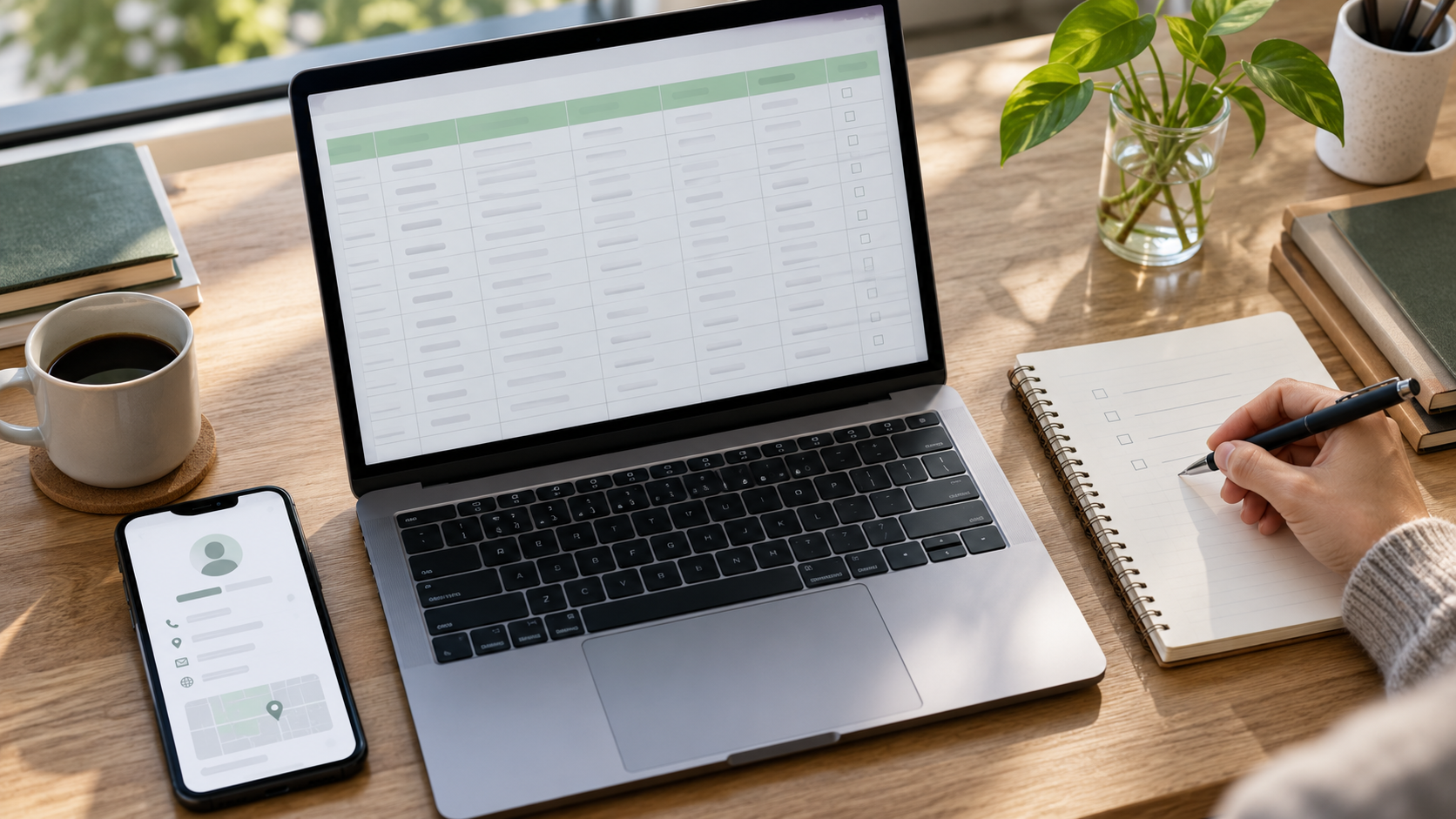
<figure><img src="/images/blog/firma-listesi-dogrulama.png" alt="Comparing business details using a spreadsheet, a phone and a checklist notebook" width="1672" height="941" loading="lazy" decoding="async"><figcaption>Comparing exported records and checking for missing information. AI-generated illustrative image.</figcaption></figure>

## Remove duplicates, but keep separate branches

Don't delete rows based on company name alone. Different businesses can use the same or similar names. Separate branches of the same brand may also be distinct records for your research.

Compare the website domain, business phone and address together. Branches that share a central call center may have the same phone number, so a phone match on its own isn't a reason to merge records.

Instead of deleting ambiguous records right away, flag them as "needs review." Track situations like a missing phone number, a closed business or a wrong category with separate tags. That way, your file contains not just cleaned-up results but also the reasoning behind the decisions you made.

## What should you compare when choosing a tool?

- **Relevant record rate:** How many of the results actually fit your research goal?
- **Field accuracy:** Do the contact and address details match the same business?
- **Export format:** Does the output work with the spreadsheet or CRM system you use?
- **Duplicate handling:** What happens when you research the same business again?
- **Updates and cost:** What's the total workload of refreshing the file regularly?

Evaluate tools on a small sample of equal scope. For the same area and category, compare the number of usable records, not just the number of rows. Calculate prices based on current plans and the fields you actually need.

## Before you use the information you collect

Being able to see a piece of data, or export it to a file, doesn't mean you have the right to use it for any purpose. Build the terms of use of your chosen source, including its rules on storage, republishing and attribution, into your work plan.

Google's Places API policies restrict content storage, define an exception for place IDs and spell out attribution requirements for displayed content. Review these rules before moving information obtained from the API into a permanent database. [Source: Google Places API policies.](https://developers.google.com/maps/documentation/places/web-service/policies)

If you plan to use your list for outreach, treat information gathering and sending communications as separate stages. Having a contact detail on your list doesn't mean you have permission for every message you send.

## Frequently asked questions

### Can you find every business in a city with a single search?

Don't assume completeness. Your research needs to be checked for categories, areas and record accuracy. The number of results in a tool doesn't prove the total number of businesses in a city.

### Can you get email addresses from Google Maps too?

Not every business listing includes an email address. Additional contact details offered by providers may come from the business's website. Check the data source and how current it is separately.

### Should I use CSV or Excel?

When moving data into another system, choose the format that system supports. An Excel file can be handy for manual review and filtering. With CSV, check the delimiter and character encoding, and in both formats make sure phone fields are preserved.

### Which is more valuable: lots of records or fewer accurate ones?

That depends on the purpose of your research. But rows with the wrong category, duplicate branches or incorrect contact details don't make decisions easier, even if they push up the count. Measure usability first.

## Turn your list into a decision-making tool

Start extracting businesses from Google Maps with a goal, a category plan and an area plan. Choose the right method, check a small sample and then expand the scope. Once you organize the data with shared fields and clean out duplicates, the file stops being just a table of business names.

A good business list shows which businesses were included in the research and why, where the information came from and when it was checked. This structure lets you reuse the same research approach across different industries.


## Get started with OmniPure Maps Business Collector

To run your category- and location-based business research in a single application, take a look at our [Google Maps Scraper — Maps Business Collector](/en/scraper/). You can see its bulk business search, phone and address listing, and website and available social media link research features in the demo video on the product page. Monthly, annual and lifetime license options are listed on the same page.

As you plan the next step for your sales team, you can also check out our [guide to building a B2B lead list with a Google Maps scraper](/en/blog/google-maps-scraper-b2b-lead-list/).